

Editing zone settings
Rename the zone, keep zone notes, delete a zone, and choose which compatibility tests run between this zone and the others in the site.
To open the settings, click the Zone Settings gear button in the zone toolbar. The modal is titled Zone Settings for your zone’s name and has two tabs: Details and Interactions.
Details tab
Section titled “Details tab”- Zone name — rename the zone.
- Scan files — informational: a zone’s displayed scans are chosen from the Scans menu on the spectrum plot, not here. See Choosing which scan files a zone displays.
- Zone notes — free text saved with the zone.
Click Save to apply changes (Saved Zone Details).
Deleting a zone
Section titled “Deleting a zone”Click the red Delete button. The confirmation warns: This will permanently delete all data for this zone. If this is shared, all collaborators will lose it too.
Interactions tab
Section titled “Interactions tab”This tab controls which compatibility tests run between this zone and each other zone in the site — the zone-level counterpart of site interactions.
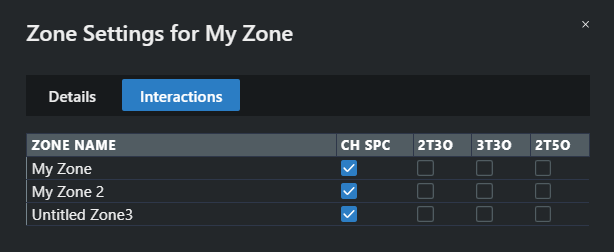
One row per other zone:
| Column | Test |
|---|---|
| CH SPC | Channel spacing / direct frequency hits |
| 2T3O | 2-transmitter, 3rd-order intermodulation |
| 2T5O | 2-transmitter, 5th-order intermodulation |
| 3T3O | 3-transmitter, 3rd-order intermodulation |
| DHB (kHz) | Direct Hit Buffer — overrides equipment-profile direct-hit spacing between the interacting frequencies (SoundBase Pro). Entering a value enables CH SPC automatically; clearing CH SPC clears the buffer. |
Click Save — the changes apply together, and Coord re-analyzes the coordination.