

Creating new equipment profile
You can create your own equipment profile by entering specific details.
To create a device profile:
- In the Details area, click the
+button. A new pop-up window opens. - Fill in your custom equipment details including manufacturer, model, and model band.
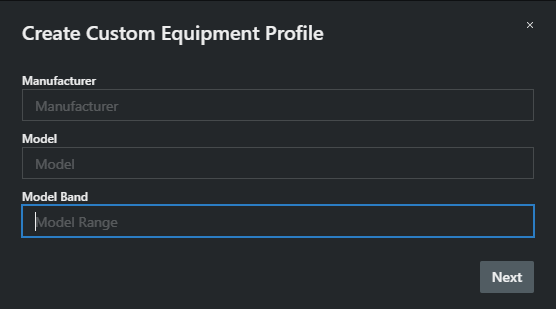
- Click Next.
- Fill in your custom equipment details device type, filter type, and channel quantity.
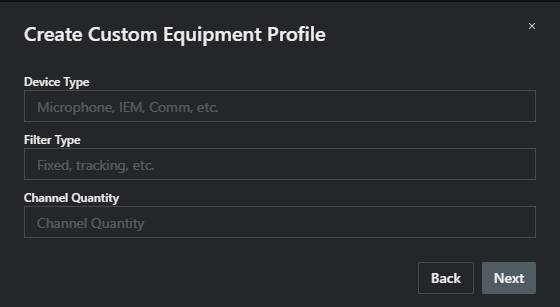
- Click Next.
- Type in the RF Power in mW for your device.
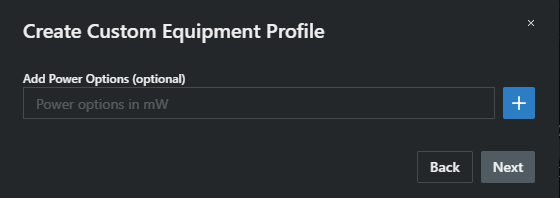
- Click on +. The RF Power has been added.
- Click Next.
- Enter up to three start and stop frequencies for your equipment.
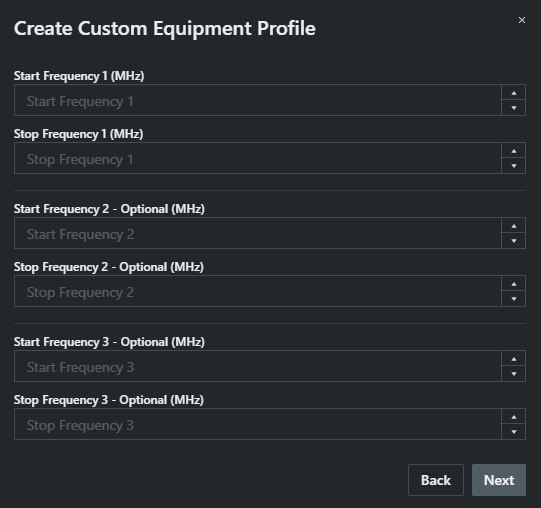
- Click Next.
- Enter the thirds, fifths, and sevenths spacing values for standard mode.
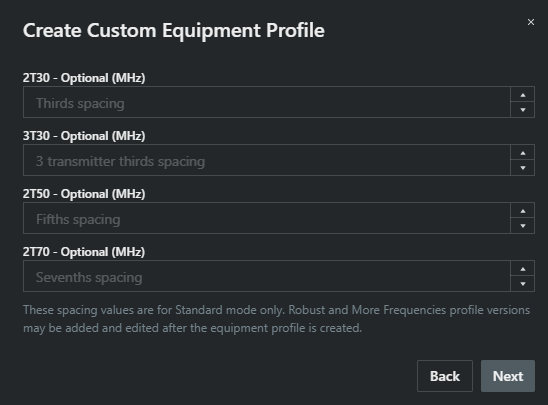
These spacing values are for Standard mode only. Robust and More Frequencies profile versions may be added and edited after the equipment profile is created.
- Click Next.
- Enter the channel spacing and the ste size in MHz.
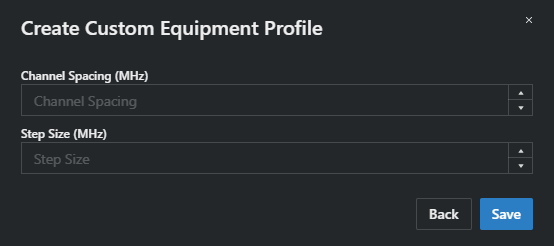
- Click on Save.
Your new equipment profile has been created. You can select your profile from the Calculation area.