

Creating a new site
Create a site for each venue or RF environment in your project. Each site has its own zones, groups, TV channels, and calculation settings.
Create a site from the Site bar
Section titled “Create a site from the Site bar”- In the Site bar, click the Add Site (+) button.
The New Site Name dialog opens with the name Untitled Site pre-selected.
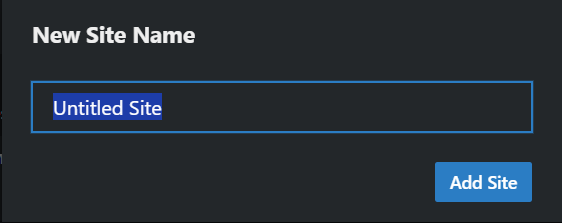
- Type a name and click Add Site (or press Enter).
Coord switches to the new site immediately. It starts with one zone (containing a group named New Group), no location, and default calculation settings.
Give the site a location
Section titled “Give the site a location”A new site has no location until you set one. Open the TV Channels page and search for the site’s address (or a what3words phrase). Setting the location:
- saves the location and time zone on the site,
- runs a TV channel search for the surrounding area and activates the channels found (United States, Canada, and United Kingdom), and
- feeds the weather widget in the Site bar.
See Enabling TV channels.
Starting from an existing site instead
Section titled “Starting from an existing site instead”If the new venue should inherit work you’ve already done, don’t start empty:
- Duplicate a site to carry over zones, groups, frequencies, and your choice of channels, exclusions, and settings.
- Import a site from a
.sbcoordsitefile exported earlier or by a colleague.