

Creating a document site report
Generate a printable report of the site’s coordination — a styled default report, or a Pro custom report rendered from your own template as PDF, ODT, or DOCX.
Open the report dialog
Section titled “Open the report dialog”- In the Site bar, click Share Site → Document Site Report.
The Create Report dialog opens with two tabs: Default and Custom (the Custom tab carries a Pro badge).
Default report
Section titled “Default report”The default report renders a styled page in a new browser tab, ready to print or save as PDF (SoundBase Desktop saves it directly). Optionally add a logo (Pro), choose your content options, and click Generate Report.
Custom report (Pro)
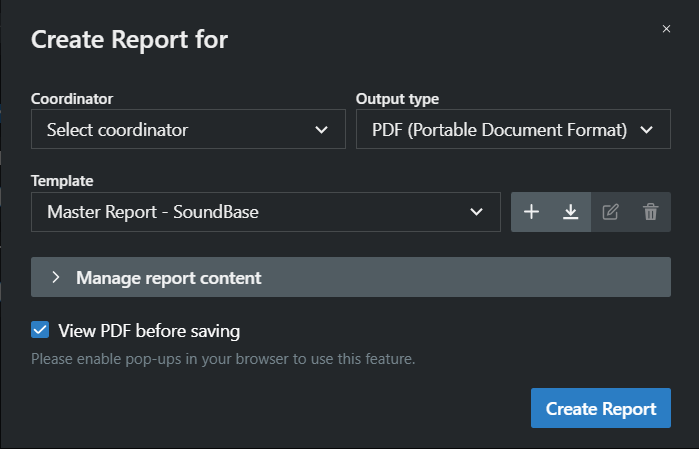
Section titled “Custom report (Pro)”The custom report renders your data through a template:
- Coordinator — whose name appears on the report; pick any collaborator (you are marked “(me)”).
- Output type — PDF (Portable Document Format), ODT (OpenDocument Text File), or DOCX (Microsoft Word Document).
- Template — one of the SoundBase templates or your own uploads. Templates you upload are stored per user, so they work across all your projects. You can rename, download, or delete a template from the picker. To build one, see Modifying report templates.
Click Create Report to generate and download the file.
Content options
Section titled “Content options”Both tabs share the Share information options:
- Project details and Client information — include those sections.
- TV channels — include the site’s TV channel table.
- Sorted frequency list — an additional numerically sorted list (default report only).
- Hide frequency color statuses (incompatible, manually accepted, etc.) — present all frequencies neutrally.
- Zones to include — tick which zones (and their groups) appear in the report.
- View PDF before saving — opens the PDF in a browser tab instead of downloading immediately (allow pop-ups for this).