

Groups
Groups hold the individual frequencies in a zone — one group per set of devices, with its own color, contact info, time-of-use, reports, and bulk actions.
What is a group?
Section titled “What is a group?”Groups are the last level of the Coord hierarchy (site → zone → group → frequencies). A group typically represents one set of devices — the handhelds, the IEMs, one band’s backline, one ENG crew — and is the unit you calculate into: every frequency calculation targets the selected group.
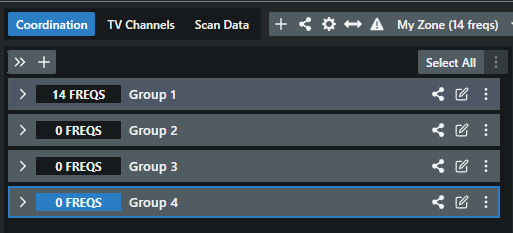
Each group in the coordination list is a colored box with a header row: the collapse chevron, a frequency-count badge, the group name (click it to rename inline), and the group’s buttons. Click anywhere on a group to select it as the calculation target. Drag the header to reorder groups within the zone, and drop a frequency row onto another group to move it.
Group types
Section titled “Group types”Chosen at creation and fixed afterwards:
| Type | What it’s for |
|---|---|
| Fixed Frequency | The normal group — holds discrete coordinated frequencies. |
| Frequency-hopping | Broadband/hopping systems. You define a start/stop range and a device count; Coord reserves the whole range with an exclusion range and lists numbered channels. These groups count Devices instead of frequencies. |
| Sennheiser Spectera | Sennheiser’s wideband system — picks its RF slots from TV channels or the 1.4 GHz range, and can link to and sync with a Spectera base station. |
The group’s buttons
Section titled “The group’s buttons”- Share Group — Export Group as…, Document Group Report, Real-time Group Report.
- Customize Group (pencil) — auto-enumerate, sorting, and colors.
- Group Actions (⋮) — everything else: Group Details, Time-of-Use, Recalculate…, Calculation History, All Frequencies…, Lock Group, Move Group to…, Delete Group, and Enable Monitoring View.
The coordination list’s own toolbar adds Add Group (+), Collapse All Groups / Expand All Groups, and a date Filter that appears once groups have time-of-use ranges.
Working with groups
Section titled “Working with groups”- Creating a new group
- Editing group details — name, contact info, logo, notes
- Customizing groups — auto-numbering, sort, colors
- Setting time-of-use — reuse spectrum across time slots
- Managing all frequencies and recalculating a group
- Locking, moving to another zone, deleting
- Exporting groups, document reports, real-time reports
- Enabling groups for monitoring
Usage examples
Section titled “Usage examples”A concert with one band. Groups per device type — Mics, Backline, In-ears — keep the coordination list readable and let each type carry its own color.
Contact info per crew. At a conference with many ENG crews, one group per crew stores the operator’s name, phone, and email right where their frequencies live — so you can reach them when something has to change.
Time-of-use. At a festival in congested spectrum, give each act’s group its own time range and let non-overlapping acts reuse the same frequencies. See Setting time-of-use.
Can I duplicate a group? No — there’s no group-duplicate action. Duplicating the site copies all its groups; within a zone, create a new group and calculate into it.
Can I change a group’s type after creating it? No. The type (Fixed Frequency / Frequency-hopping / Spectera) is fixed at creation — create a new group of the right type instead.
Why is my group’s Export item missing? Frequency-hopping and broadband groups don’t offer frequency-list exports (they hold ranges, not discrete frequencies), and Spectera groups keep their sharing items inside the ⋮ menu along with Export Configuration.
What selects which group a calculation lands in? The selected group — click a group to select it (it gets a highlighted border). The calculation area always adds results to the selected group, or you can pick a different destination (or New group) when adding candidates.