

Creating a real-time group report
Give one crew a live link to just their group’s frequencies — updating in real time, with optional password and per-column edit rights.
Enable the report
Section titled “Enable the report”- Click the group’s Share Group button and choose Real-time Group Report.
(For Sennheiser Spectera groups, the item is in the ⋮ menu.)
The Real-time Report dialog opens for the group.
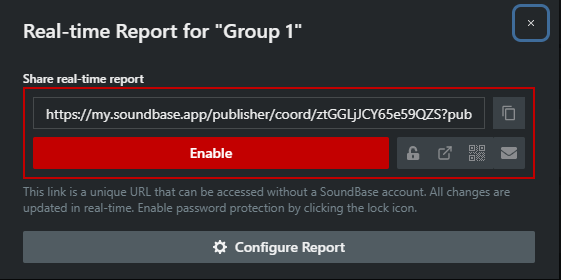
- Click Enable. The link goes live and is copied to your clipboard.
- Share it with the buttons next to the link field: Copy Link, Toggle Password Protection (lock icon), open in a new tab, View QR Code, or Email Report Link.
Recipients need no SoundBase account; the page updates live as the coordination changes. Disable kills the link.
Configure what the report shows
Section titled “Configure what the report shows”Click Configure Report:
- Contact info and a message line for the top of the report (or reuse the site notes).
- Automatically expand all zones and groups when opening the report, Show incompatible frequencies, Hide frequency color statuses.
- The per-column table — View shows a column; Edit lets anyone with the link change that field. Letting a crew edit their own frequency names while everything else stays read-only is the classic setup. Drag rows to reorder columns.