

Zones
A zone is a physical space within a site — its own coordination list, scan data, and monitoring, with configurable calculation interactions toward other zones.
What is a zone?
Section titled “What is a zone?”Zones sit between sites and groups in the Coord hierarchy. Use one zone per room, stage, or area whose RF situation differs from its neighbors. Every zone has its own groups and frequencies, its own choice of displayed scan files, and its own monitoring setup.
By default, zones in a site avoid direct frequency hits against each other; the full set of intermodulation tests between any two zones is configurable in zone settings.
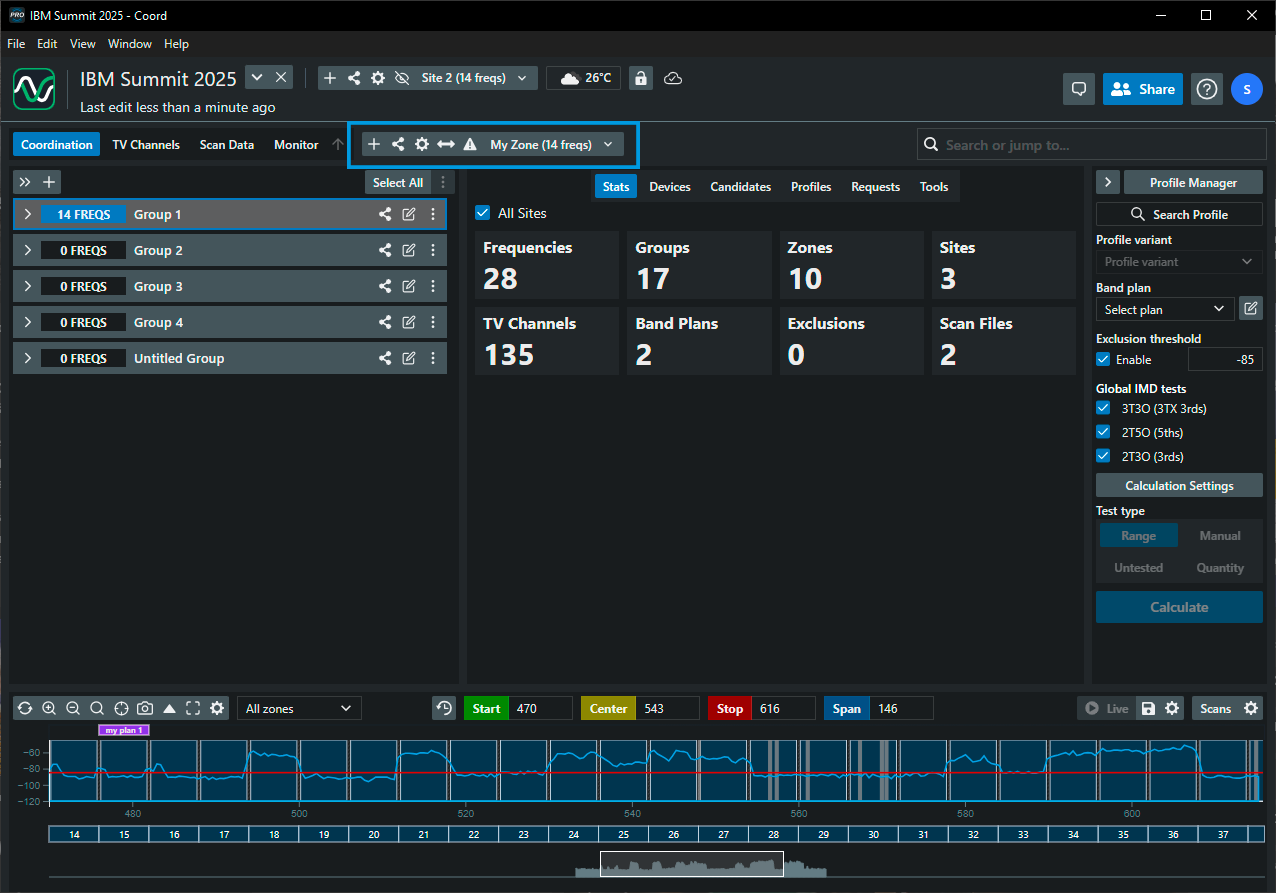
The zone toolbar
Section titled “The zone toolbar”Everything zone-level happens in the toolbar above the coordination list:
- View tabs — Coordination (the frequency list), TV Channels (site-wide broadcast channels — shared by every zone), Scan Data (manage the site’s scan files), and Monitor (device monitoring for this zone, SoundBase Desktop).
- Exclusion Ranges — site-wide blocked ranges. See Excluding a frequency range.
- Frequency Exclusions — this zone’s blocked single frequencies. See Excluding single frequencies.
- Timeline — the group time-of-use timeline (SoundBase Pro). See Setting time-of-use.
- Add Zone (+) — see Creating a new zone.
- Share Zone — Import Zone as…, Export Zone as…, Document Zone Report, Real-time Zone Report.
- Zone Settings (gear) — name, notes, deletion, and interactions. See Editing zone settings.
- Zone selector — the button showing the current zone and its frequency count. Besides switching zones, its menu holds the zone-wide actions listed below.
- Health Check — a full analysis of the zone’s frequencies. See Running a zone Health Check.
- Incompatible / Ignored counters — when the zone has uncoordinated frequencies, these buttons summarize them and offer Recalculate all incompatible, Recalculate all ignored, and Manually accept all.
The zone menu
Section titled “The zone menu”Open the zone selector to switch zones (they’re listed alphabetically, the active one marked Selected) and to run zone-wide actions:
- Recalculate Incompatible Only and Recalculate All In Zone — see Recalculating frequencies
- Calculation History
- Add Static Frequencies — see Adding static frequencies
- Mark/Unmark Frequencies as Deployed — see Marking frequencies as deployed
- Mark Frequencies as Incompatible — see Marking frequencies as incompatible
- Mark Frequencies as Ignored / Stop Ignoring Frequencies — see Ignoring frequencies
- Enable Monitoring View (SoundBase Pro) — see Enabling the monitoring view
Working with zones
Section titled “Working with zones”- Creating a new zone · Selecting a zone · Editing zone settings
- Excluding frequencies — how the three exclusion types differ
- Choosing which scan files a zone displays
- Importing zones · Exporting zones
- Zone reports · Real-time zone reports
- Running a zone Health Check · Recalculating frequencies
Usage examples
Section titled “Usage examples”Multi-room event. For isolated happenings in different parts of a building, give each space its own zone. Nearby rooms keep full intermodulation tests and channel spacing between them; distant rooms disable interactions entirely for more spectrum headroom.
Roving ENG crew. Give the crew a dedicated zone with interactions enabled toward every other zone — their frequencies stay clean wherever in the venue they roam.
Festival. One zone per band keeps each coordination list small, with groups inside for IEMs, backline, and mics.
Stadium broadcast. Near and far sidelines can be separate zones that test channel spacing against each other but skip intermod tests across the field.
Can I duplicate or reorder zones? No. Zones are listed alphabetically and there’s no zone-duplicate action — duplicate the whole site, or export the zone and re-import it. A naming prefix (“1 - Main Stage”) is the practical way to control ordering.
Can a site have zero zones? No — Coord requires at least one zone per site, and deleting the last one is blocked.
Are TV channels per zone? No. TV channel state is per site: activating or deactivating a channel affects every zone in the site.
Which exclusions are zone-scoped? Single-frequency exclusions are per zone. Range exclusions and the scan-data exclusion threshold are site-wide. See Excluding frequencies.
What’s the Autopilot button in the coordination list? Autopilot (Beta) is an assistant that builds a zone’s coordination from a device list — discover devices on the network or type them in, and it creates groups and calculates frequencies for the zone. It’s in beta, and you can hide the button (Hide Autopilot Button) if you don’t use it.