

Editing site settings
Manage the site’s name, notes, and TV channel bandwidth, control which compatibility tests run between sites, and maintain licensed spectrum.
To open the settings, click the Site Settings gear button in the Site bar. The modal is titled Site Settings for your site’s name and has three tabs: Details, Interactions, and Licensed Spectrum.
Details tab
Section titled “Details tab”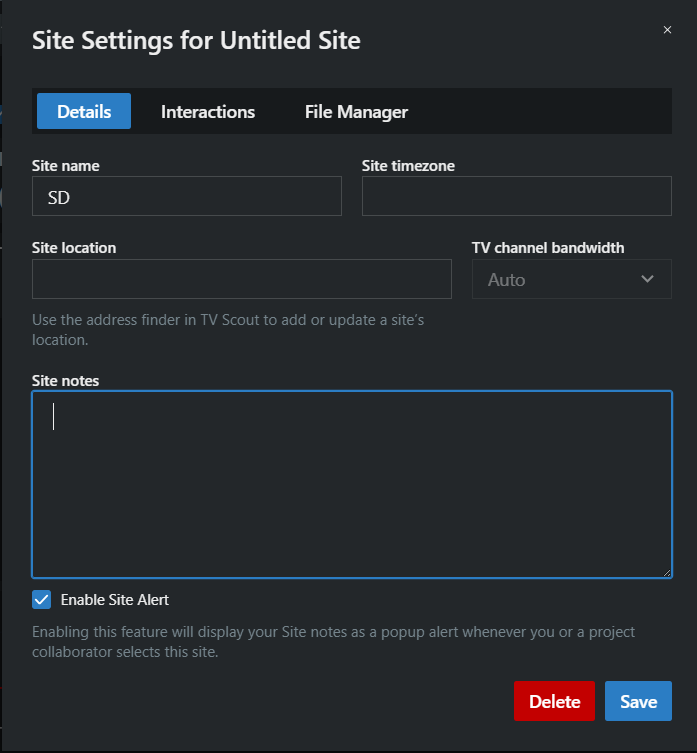
- Site name — rename the site.
- Site timezone — read-only; derived from the site’s location.
- Site location — start typing an address or venue and pick a suggestion from the dropdown. You must click (or press Enter on) a suggestion — free text that isn’t matched to a place is discarded. Saving a new location refreshes the site’s timezone and re-runs the TV channel search for that location, the same as setting it from the TV Channels page.
- TV channel bandwidth — Auto uses the bandwidth for the site’s country. Switch to Manual and click Edit to define the channel grid yourself in the Manual TV Channel Set editor: pick TV Channel Bandwidth (6 MHz or 8 MHz), a TV Channel Start number, and start/stop frequencies, then add rows. Use this for countries where SoundBase has no built-in channel layout.
- Site notes — free text saved with the site.
- Enable Site Alert — when checked, the site notes pop up as a Site Notes alert whenever you or a collaborator selects this site (once per session). Useful for “house rules” every operator must read.
Click Save to apply changes.
Deleting a site
Section titled “Deleting a site”Click the red Delete button on the Details tab. The confirmation warns: This will permanently delete all data for this site. If this is shared, all collaborators will lose it too.
Interactions tab
Section titled “Interactions tab”This tab controls which compatibility tests run between your current site and each other site in the project. Sites don’t interact at all until you enable something here.
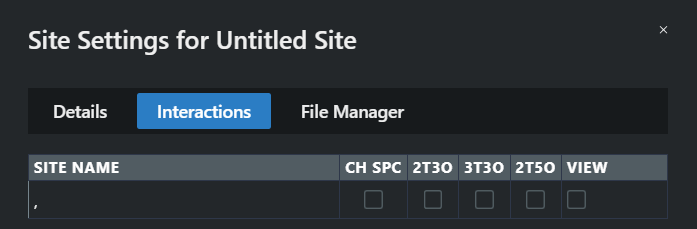
One row per other site, with a checkbox per test:
| Column | Test |
|---|---|
| CH SPC | Channel spacing / direct frequency hits |
| 2T3O | 2-transmitter, 3rd-order intermodulation |
| 2T5O | 2-transmitter, 5th-order intermodulation |
| 3T3O | 3-transmitter, 3rd-order intermodulation |
| DHB (kHz) | Direct Hit Buffer — overrides equipment-profile direct-hit spacing between the interacting frequencies (SoundBase Pro). Entering a value enables CH SPC automatically. |
| View | Shows the other site’s frequencies in your spectrum plot. Pick a display color with the swatch. |
Click Save — Coord then re-analyzes the coordination with the new interaction set.
Licensed Spectrum tab
Section titled “Licensed Spectrum tab”Keep a list of frequencies you hold licenses for, and calculate directly against it. This is where the Manual Calculate window’s licensed-spectrum option gets its data.
- Add frequencies manually — enter a comma-separated list of frequencies in MHz and click Add.
- Import CSV — click or drag a
.csvfile in. Column 1 is the frequency in MHz, column 2 an optional note. Imports are capped at 500 rows. - Edit the Frequency and Notes cells in place, tick rows and use the Delete menu (Selected frequencies / All frequencies) to prune the list.