

Creating band plans
Build and edit band plans — by start/stop, by TV channel with edge buffers, or as multi-range plans — and protect ranges from other calculations.
A band plan is a named slice of spectrum that constrains where calculations may place frequencies. What band plans do in calculations is covered in Band plans; this page is the manager itself.
Open the band plan manager
Section titled “Open the band plan manager”Two ways in:
- In the Calculation area, next to the Band plan selector, click the pencil button (Edit Band Plans).
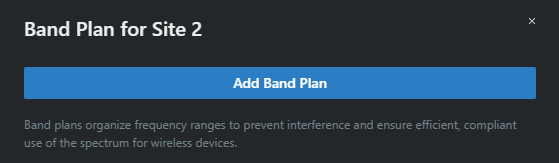
- Or click any band plan segment in the purple strip on the plot.
The Band Plan modal opens for the site (this locks the site for collaborators while it’s open, and clears the current candidate list).
Add a band plan
Section titled “Add a band plan”- Click Add Band Plan and choose:
- Add by Start & Stop — name it and enter the start/stop in MHz.
- Add by TV Channel — name it and pick the start and stop channels. Optionally tick Apply channel buffer and set the Start buffer (kHz) and Stop buffer (kHz) (default 100 kHz each) — the buffer pulls the plan’s edges inward from the channel boundaries, keeping calculated frequencies off the channel edges.
- Click Add. The new plan is selected automatically in the calculation area’s Band plan dropdown.
Multi-range band plans
Section titled “Multi-range band plans”Where multi-range plans are enabled, the add dialog builds a plan from several ranges: each row has its own enable checkbox, an Add by choice (Start & Stop or TV Channel, with per-row buffers), and a computed range width; Add Range adds rows. Ranges within a plan must not overlap. A frequency assigned to a multi-range plan may land in any of its enabled ranges.
Edit and manage plans
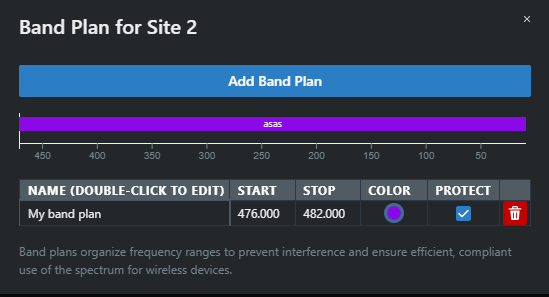
Section titled “Edit and manage plans”The table lists every plan in the site:
- Name (double-click to edit) — and, in classic single-range mode, editable Start/Stop cells. With multi-range enabled, a Ranges cell summarizes the ranges (click it to open the Edit Ranges editor).
- Color — the plan’s color in the plot strip (purple by default).
- Protect — protected plans act as exclusions for every calculation that doesn’t use them: nothing else gets placed inside the plan’s ranges. Frequencies violating someone else’s protected plan show as
IsolatedBandPlanissues in the Health Check. - The trash button deletes a plan (confirmed with Delete Band Plan?).
You can also drag a plan’s edges directly in the chart above the table — hover a bar to get resize handles; values snap to whole MHz. Edits save immediately and re-run the analysis.
Assigning plans
Section titled “Assigning plans”- Per calculation — the Band plan selector in the calculation area.
- Per frequency — the Band Plan field in a frequency’s details.
- In bulk — the band plan option in group and zone recalculation dialogs (keep, apply, or clear).
Groups themselves don’t hold a band plan — assignment is per calculation and per frequency.