

The Project Actions menu
Project details and client information, the Coord window layout, exports, and what closing a project actually does.
Click the chevron button (Project Actions) beside the project name.
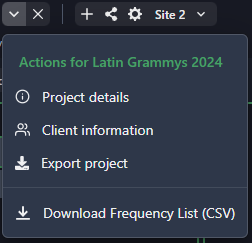
| Item | What it does |
|---|---|
| Project Details | Name, dates, notes, and project-wide options — see below |
| Client Information | The client’s contact details, used in reports — see Editing client information |
| Share… | Opens the sharing dialog (phones only; on desktop use the Share button in the bar) |
| Project Layout | Rearranges the Coord window — see below. Requires SoundBase Pro |
| Export Project | Downloads the whole project as a .soundbase file — see Exporting/importing a project |
| Manual Sync | A support-assisted recovery tool that replaces the project from an uploaded file. Only use it under guidance from SoundBase support |
| Download Frequency List (CSV) | Every frequency in the project as a CSV, across all sites and zones (Coord only) |
The whole menu is disabled for viewers, and Project Layout and Download Frequency List (CSV) only appear while you’re in Coord.
Project Details
Section titled “Project Details”The dialog covers more than its docs page suggests:
- Project owner and Collaborators — who owns the project and who’s on it (read-only here; manage people from Share).
- Project name, Created date (read-only), Start date, End date, and Project notes.
- Use version 1 frequency request system (Coord) — switches the frequency-request workflow. It locks once any request exists, so choose it before you start collecting requests.
- Auto-open this project on Desktop startup (Coord, SoundBase Desktop) — jumps straight into this project when the app launches.
Project dates matter beyond bookkeeping: group time-of-use ranges must fall inside them, so SoundBase blocks clearing a start date while any group still depends on it. Step-by-step editing is in Editing project details.
Project Layout (Pro)
Section titled “Project Layout (Pro)”Project Layout rearranges Coord’s main window: drag the Coordination List, Action Window, and Frequency Finder blocks into the order you want, then drag the dividers in the main window to size the columns. The frequency plot stays along the bottom.
Your layout applies to all your projects, not just this one. Reset Layout returns to the default arrangement.
Closing a project
Section titled “Closing a project”The X button beside the menu closes the project and returns you to My Projects. It also cleans up after you: external plot and monitoring windows close, device connections and live scanning stop, remote view shuts down, and any site lock you were holding is released so collaborators aren’t left waiting.