

First launch
Your first session in SoundBase: the welcome dialog, creating the first project, choosing an application to launch it in — and, on Desktop, cloud versus local projects.
The first sign-in
Section titled “The first sign-in”After creating and verifying your account, sign in. A Welcome to SoundBase dialog greets you with links to these docs and the community Discord — I’m ready, let’s go! dismisses it for good (both stay one click away under the Help menu).
You land on My Projects. It’s empty until you create something: click New in the toolbar (or Import if you have an exported project file).
On SoundBase Desktop
Section titled “On SoundBase Desktop”The desktop first run has a few extra beats:
- Signing in requires an internet connection the first time — it activates your license on this machine. (Later launches work offline.) Enterprise users activate with a license key via Enterprise Accounts on the login screen.
- macOS asks for the Local Network permission — allow it, or device discovery won’t work.
- A short “Cleaning up the database and getting things ready for you…” step prepares local storage, and the app checks for updates shortly after start (staying up to date).
Create the first project
Section titled “Create the first project”- Click New. Give the project a name, a Project location (address, what3words, or coordinates — the location drives TV channel data later), and optionally the project’s start and end dates (needed later for time-of-use).
- Choose what to Launch project in:
- Frequency Coordination (Coord) — the flagship: frequency coordination, spectrum, and monitoring. These docs mostly cover Coord.
- Intercom Management (Nexus)
- Audio Documentation (Harmony) and Project Management (Dashboard) — currently in development.
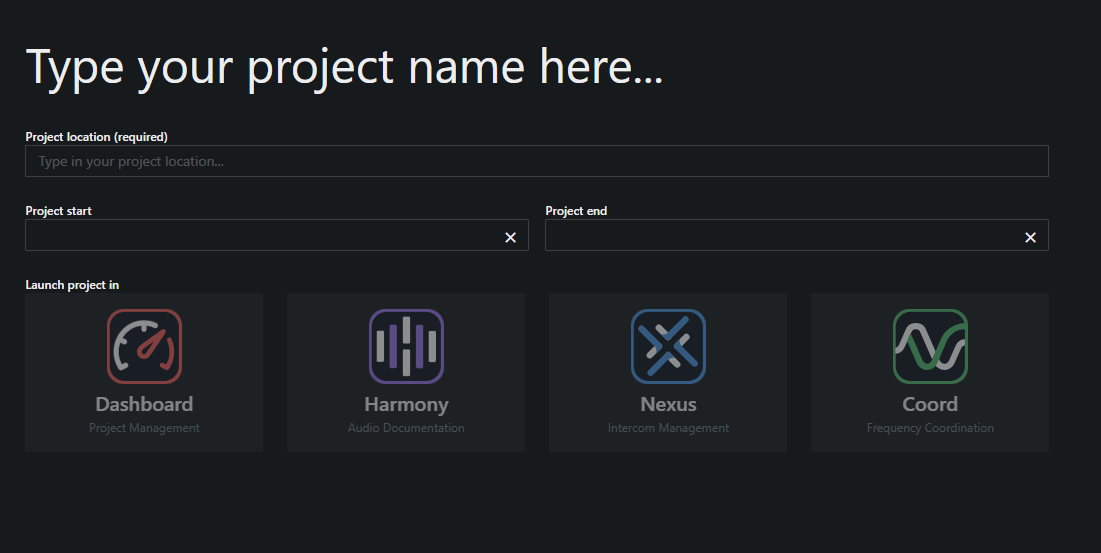
- Create it — you’re taken straight into the application. To get back to all your projects later, exit to the project page from the project menu.
Next steps from here: Introduction & basic setup walks the recommended path through your first coordination.
Cloud or local projects
Section titled “Cloud or local projects”In the browser, every project is a cloud project. SoundBase Desktop offers a choice per project at creation — Sync data with the cloud or Store data locally (no cloud sync):
| Local | Cloud | |
|---|---|---|
| Offline access | ✓ | ✓ |
| Cloud syncing to all your devices | ✓ | |
| Project collaboration | ✓ | |
| Create and share real-time reports | ✓ | |
| Access SoundBase databases | ✓ |
Local projects never leave your machine (they’re backed up locally, not synced), which also means no collaborators, no real-time report links, and no custom document reports. Use them for shows whose data must stay on your laptop; use cloud projects for everything else.