Creating a new frequency coordination requires selecting and configuring devices
based on their frequency needs, followed by testing and confirming frequencies in the
physical environment.
Recommended steps to create a new frequency coordination:
- Confirm TV channel exclusions
- Prepare a band plan
- Select the first device
- Select candidate frequencies
- Repeat the process
- Test and confirm frequencies
Confirm TV channel exclusions:
-
Start by confirming the auto-enabled TV channel exclusions (see Finding TV channels).
- This can be done by uploading or searching for a Scan File using the
Scan Data window (see Scanning/importing location data).
- You can enable or disable channels as needed by clicking the channel
number below the Plot or within the TV channels window.
Use the latest
available data for your venue to achieve the best results. A Scan File
captured with the equipment and antenna system that will be used will
provide a clear picture of which TV channels are able to be operated
in.
.png)
The brownish blocks are enabled TV channel exclusions, and no candidate
frequencies will be calculated within these enabled blocks. Based on the
example, it will most likely be safe to disable channels 23, 27 and 32
(highlighted in Pink), and channel 19 (highlighted in Green) should probably
be enabled.
Always properly allocate the available spectrum BEFORE calculating any
frequencies for the best results.
Prepare a band plan:
-
The next step is to prepare a band plan. This is a plan of execution for the
coordination and can be as simple or complex as needed, ranging from allocating
bandwidth to specific devices or individual frequencies across the entire
project to maintaining spectrum separation between different types of
devices.
-
Begin with frequency calculations for devices that have limited candidate
frequencies.
-
Focus on devices with the fewest available candidate frequencies, which depends
on the equipment profile's tuning range and bandwidth restrictions from enabled
TV channels.
A Shure PSM200 with only 8 available fixed frequencies should be calculated
before a Shure ULX-D with a free tunable bandwidth.
Select the first device:
-
Select the first device according to your band plan within the Calculation
Area.
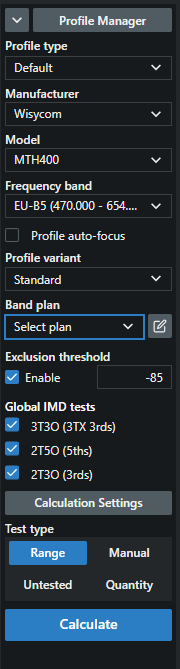
-
Select the Manufacturer, Model and Frequency band.
-
The RF profile selector:
- Allows changing the tolerances of the device to allow for wider or
tighter spacing.
- In an environment with reasonable open spectrum, the Standard RF Profile
variant is suitable.
-
The Global IMD:
- controls are typically for more advanced users that need fine-grained
control and should be used with caution.
-
The Frequency quantity selector:
- Enables you to search for a range of frequencies (as many frequencies as
possible), a Single Frequency (to test whether a value is valid), a specific
quantity of frequencies, or “Manual”.
The "Manual" selection lets you
follow Wireless Workbench's calculation pattern—add multiple devices
first, then calculate frequencies for all equipment
simultaneously.
Select candidate frequencies:
-
Select candidate frequencies from the Candidate list and add them to the
selected Group.
When a Scan File is selected in the Zone, candidate frequencies will
display the approximate amplitude of the scan file at the candidate
frequency.
Repeat the process:
-
Repeat this process with all the devices that will be used in the
coordination.
Test and confirm frequencies:
-
Test and confirm that all frequencies are clean.
Although Coord is very good at calculating clean and clear frequencies,
the physical environment always can play a role.
Your frequency coordination is now complete.